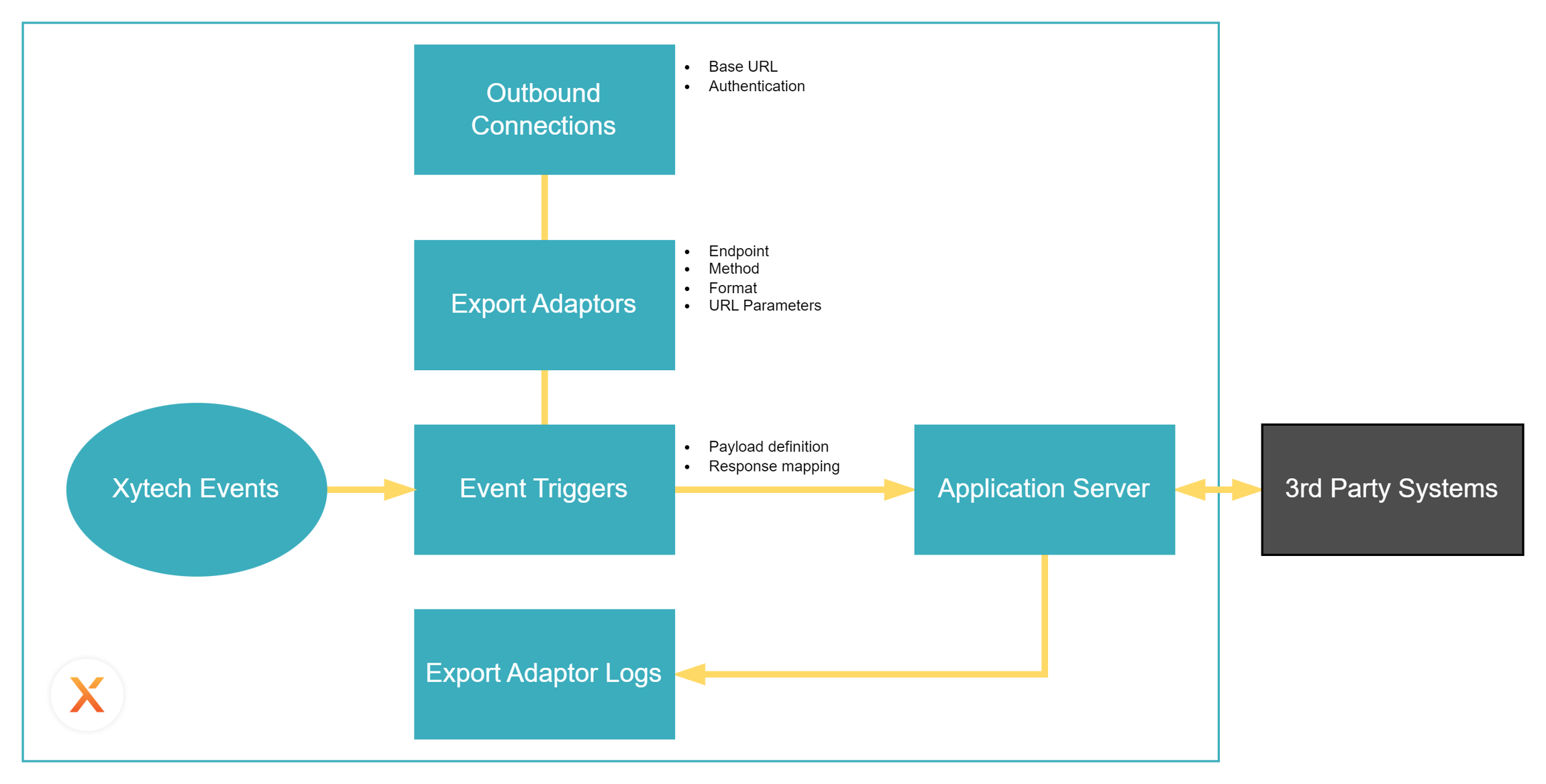
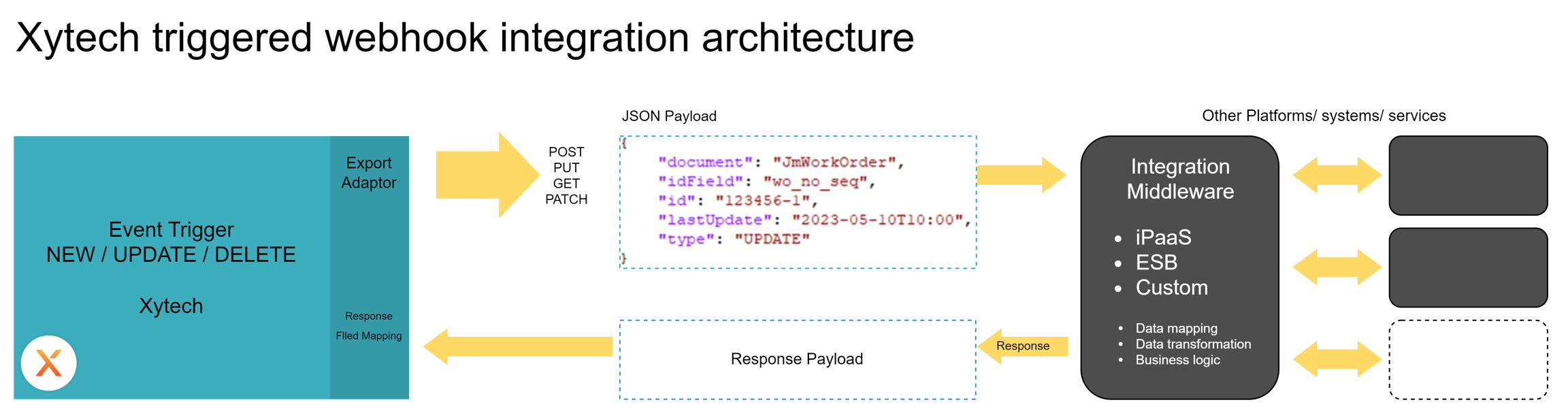
The Webhooks functionality builds on the existing Event Trigger features of Xytech, providing a notification template option where you can assign an Export Adaptor and the payload template.
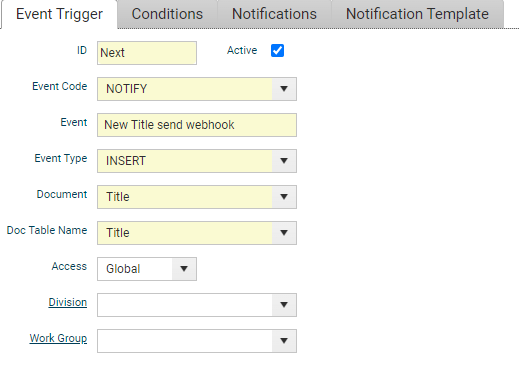
The Event Trigger defines the criteria that determine when a payload is sent, the method and content of the payload, and the Export Adapter to which it is sent.
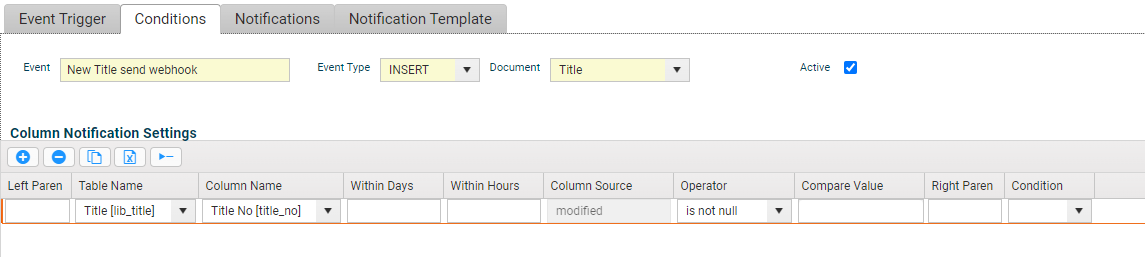
The Event Triggers and Conditions tabs determine the criteria of when to send payloads.
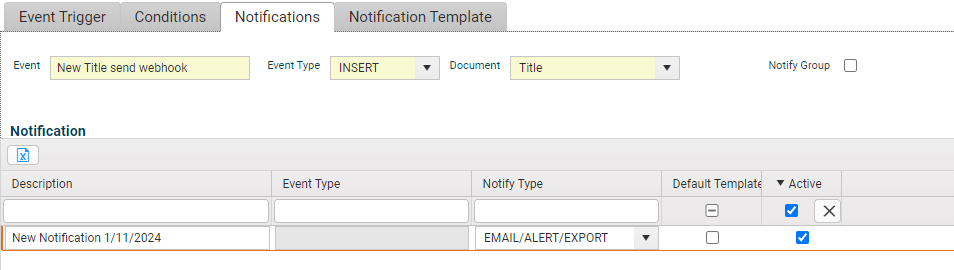
The Notifications tab determines the method used to send the payload.
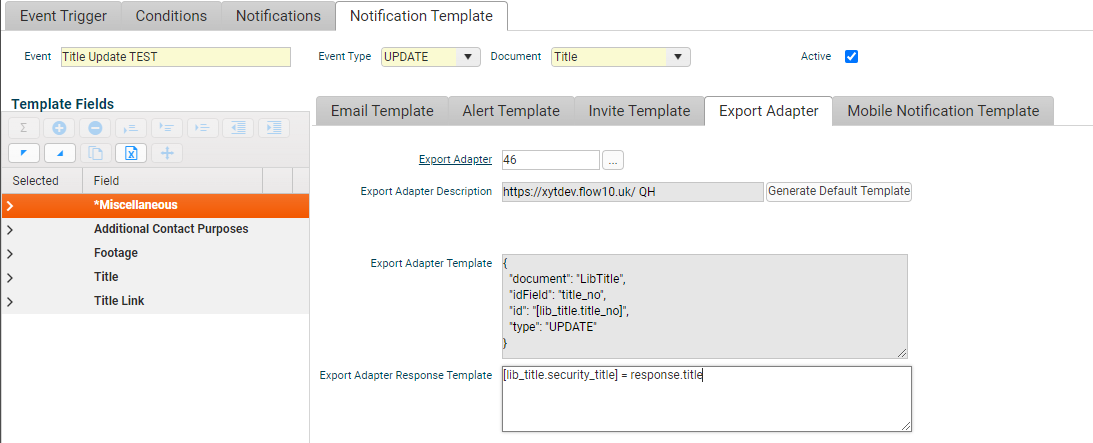
The Notification Template tab determines the destination of the trigger content.
Refer to the Online Help for more information about Event Triggers and how to configure them.
Event Trigger
Defines the field conditions that initiate a trigger, such as when a specific field is set or modified.
Event Trigger Conditions
Establishes the notification type – select ‘Email/Alert’ for webhooks.
Event Trigger Notification Type
Defines the action to take for the trigger.
Event Trigger Layout for Export Adaptor
Select the Export Adaptor to use.
Click to generate a standard payload template for the selected Document, Event Type, and Export Adaptor.
If any of the Document, Event Type, or Export Adaptor Type definitions change, you should re-generate the default template which will overwrite the previous template. If manual changes have been made to the template, you can update manually or note the additions prior to regenerating the template and reapply the changes.
Displays the payload template used to generate the payload.
Either in JSON or XML format. (The format of the template should match the format specified in the Export Adapter that will use the template.)
Syntax validation will occur when saving the Event Trigger and you will not be able to save if the template contain invalid JSON/XML syntax.
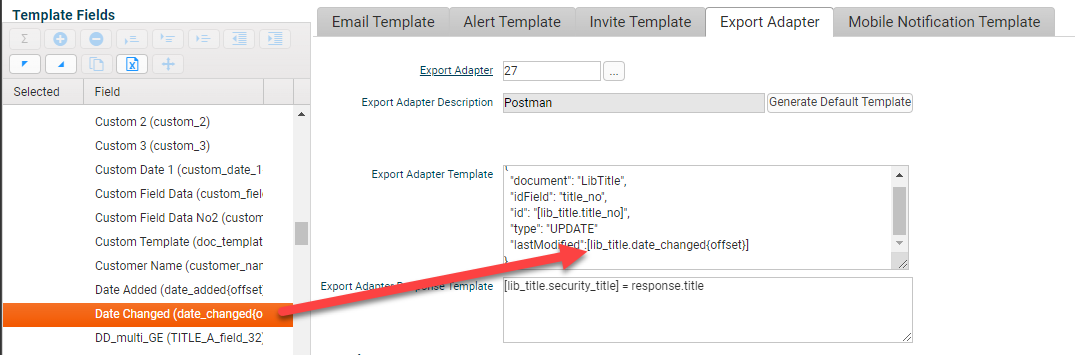
Dragging a field from the Template Fields list into the payload template.
v11.3
Export adaptor payloads can include an array of values from child tables. The syntax requires the array fields to be nested under child table tags using specific syntax as shown in the example below.
The JSON syntax must be manually managed around these table tags. You can drag and drop fields from the child table onto the template text area where the prefix syntax of the table name will be automatically applied.
An example Export Adaptor payload template for a Media Order Event Trigger that includes a list of Services and a list of Operations.
Note: This will make the template non-JSON standard. The template syntax will be validated as Xytech compliant on save.
Example payload generated:
Please note that the tables cannot be nested within each other, only one level of sub-tables is supported. No restrictions on which table is used to setup the trigger conditions as the code is document based. In other words, if your document is Media Order, you could use any sub table in the trigger conditions and all the available sub tables could be used in the template.
Web hooks includes the ability to store a value(s) received in the response body back into a field from the triggered document.
Note: This means that if an Operation in a Media Order generated a trigger, you can update a field in the Operation and not the Media Order or other related documents.
This allows Xytech to store the ID generated by an external system as a result of a web hook POST that creates the record.
Supported is the parsing of scalar and single values to be read and stored. Not arrays or JSON objects.
Can only store values back into the originating document, not related documents.
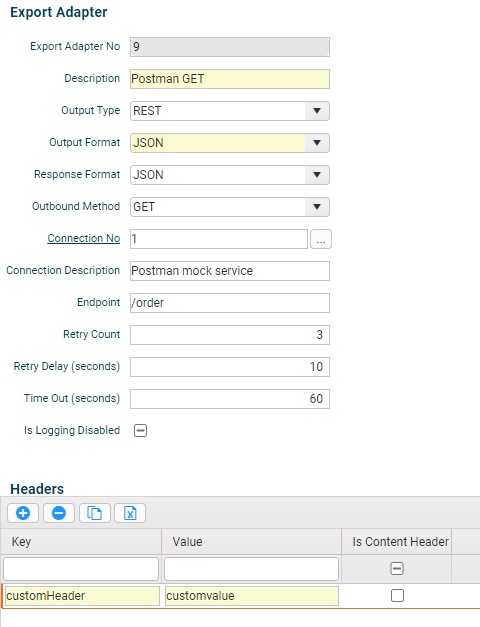
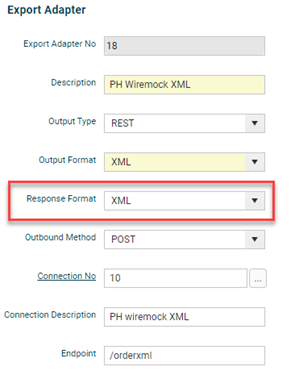
The Export adaptor includes a ‘Response Format’ parameter to define the expected response format.
Figure 1 - Response Format
If you don’t specify a content type , the default will be plain text.
The storing of Notes and Blob base64 image values is supported.
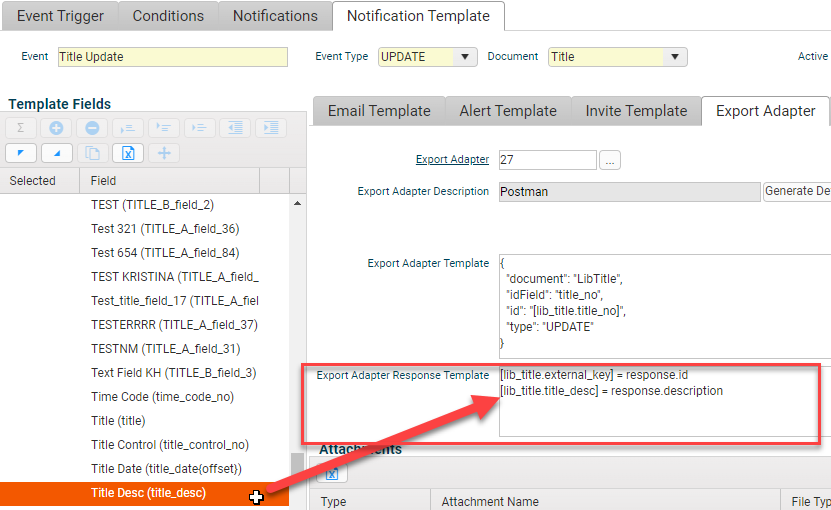
The Event Trigger includes a new field to define the Export Adaptor’s ‘Response Parsing Template’.
Here you will add the parse criteria in the format of:
<table name.field name> = response.<parse field>.
Figure 2 - Response Parsing Template
Example response payload:
Note: always include the response prefix.
If the originating document was Title and you wanted to store the 'id' value into ‘external_key’, then it would look like this: [lib_title.external_key] = response.data.id
You can store more than one value from the response payload:
e.g.:
[table.field1] = response.data.id
[table.field2] = response.data.desc
To parse an XML response, use XPATH syntax. W3Schools XPath tutorial: https://www.w3schools.com/xml/xpath_intro.asp
Simple parse:
[lib_title.external_key] = response/desc
An attribute of an element:
[lib_title.external_key] = response/catalog/book/@id
Return all values under /response as text
[lib_title.title_desc_2] = response
Example XML:
[lib_title.external_key] = response/catalog/book/@id returns the first id 'bk101' [lib_title.title_desc_2] = response/catalog/book[@id='bk102']/title returns 'Midnight Rain'
Where a text response is configure, the system will store the whole text payload.
If the response value returned is too big to store in the target field, it will get truncated.
Any existing values in the database will get overwritten with the new value.
Example:
[lib_title.title_desc_2] = response
The prefix of 'response' is mandatory to represent the response payload.
It is important to ensure the data type or the target field matches the parsed field.
In other words, you will not be able to store a string value into a numeric field.
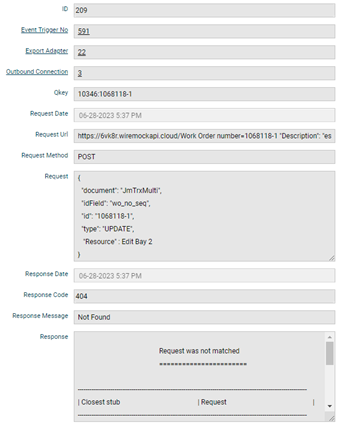
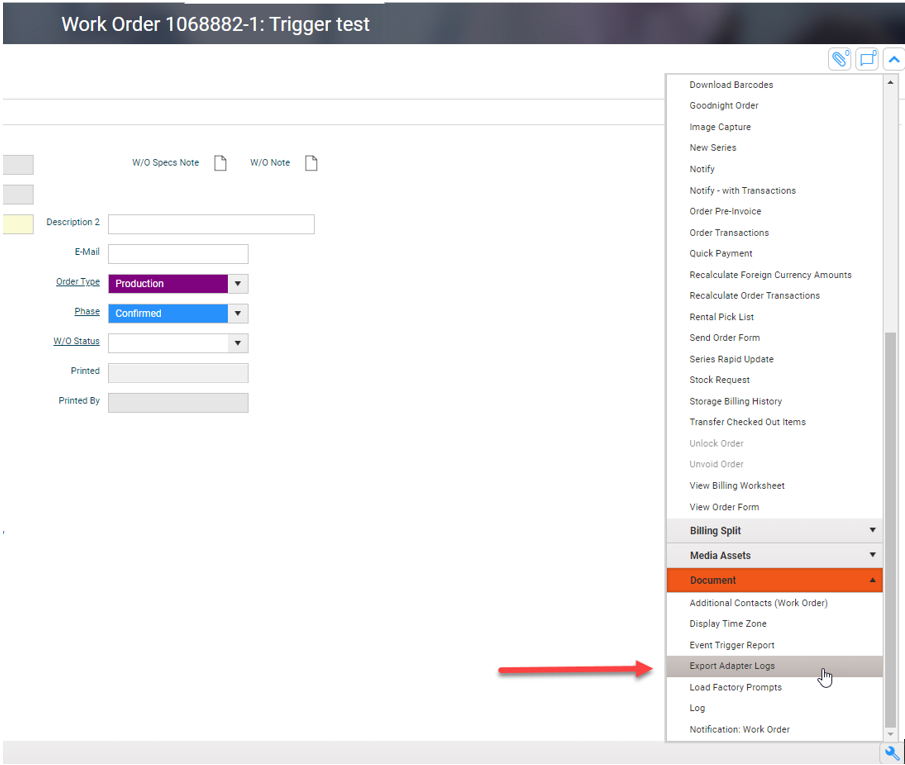
Else you will see a response parsing error in the Exp[ort Adaptor Log:
"System encountered problem with saving Parsed Response into Database"